Crafting Opinion Writing with Puppet Pals in First Grade

puppet pals (7)

Almost every class in our school is doing some form of opinion writing at the moment.  Last week, 1st grade spent some time tinkering with the Puppet Pals app on the iPad to see how it worked.  We have also been reading books that feature some type of opinion such as The Sandwich Swap and Sylvia’s Spinach.

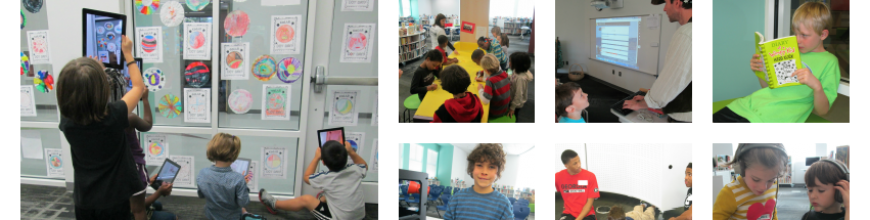
In class, the 1st graders have been writing an opinion piece, so they brought that piece of writing to the library to use the Puppet Pals app to record their script.  We started on the floor in front of the projector.  I projected an iPad and opened the puppet pal app.  I quickly went through the various screens and made sure everything still looked familiar to students from their tinkering sessions.

puppet pals (2)

Then, I showed the students a few extra steps they would need to do in order to save their video.  They would need to give their story a title and export the story to the camera roll on the iPad.  I also used this time to explain what my role for the day would be.  Since each class has about 20 students, twenty videos needed to be uploaded to Youtube and put into a playlist for the teacher to share in class and with families.  I really wanted this step to be done while the students were in the library, so I told the students that uploading videos was my only role during our work time.  The teacher was available to walk around and monitor and assist students who were recording, but more importantly, the whole class had expertise in Puppet Pals because of our tinkering and could help one another.  I encouraged them to ask one another for help if they got stuck so that I could focus on getting their videos uploaded.

During the work time, there was not a single student who came to ask me for help to use Puppet Pals.  There were certainly students who got stuck, but they relied on one another to figure things out.  I really saw the benefit of giving them time to tinker in the previous lesson.  They also were empowered to support one another rather than rely on an adult to help.

When they finished recording, they did their additional steps to export their videos and then formed a line in the middle of the library at my table.  I opened the video on the camera roll and selected to upload the video to Youtube.  I signed into my channel on each iPad.  The students helped me name the video and stayed until the video was uploaded.  Then, they went back to their work space and continued using Puppet Pals to tinker and try out a story of their own choice.

puppet pals (9)

Once all of the videos were uploaded, I selected them all in my account and added them to a playlist.

We worked for a full 45 minutes to record, upload, and continue tinkering.  There was little to no behavior problems.  Every student who had an opinion writing finished was able to film and upload a video.

Now the classes are thinking about a next step for Puppet Pals.  The students are very curious about creating a story with the characters in Puppet Pals, so I have a feeling that we will be crafting some narrative stories very soon.

The Power of Tinkering Before Assigning a Project

Educreations Day 2 (2)One of my library goals this year is to give students, teachers, and families opportunities to dream, tinker, create, and share.  That has meant many things during the course of this year, but one of the things that so many of our teachers are embracing with me is intentionally planning time for students to tinker with a new tool before we ask them to create a project with it.

Educreations Day 2 (6)

During collaborative meetings and virtual planning with teachers, I often ask if we can build in time for students to explore a technology tool with no limits, rules, or assignments.  The only assignment is to push as many buttons as you can and see what you can figure out about that tool.  In addition, there is an expectation that students will pass on their expertise to others as they figure something out through tinkering.

Educreations Day 2 (5)

There have been several instances of this type of tinkering happening this year.  Ms. Hocking gave her Kindergarten students time to tinker with storykit.  All of third grade tinkered with Puppet Pals before a folktale project.

This week, first grade is also taking time to tinker with the Puppet Pals app as they prepare for an opinion writing assignment in English Language Arts.

IMG_4796

Finally, 2nd grade is about to start creating math screencast tutorials using the Educreations app for iPad.

As I’ve facilitated these tinkering sessions, I’ve started to adjust how the sessions run.  We start on the floor to talk about tinkering.  Students share some knowledge about what they already know about tinkering.  Some of the responses I’ve heard are:  a time to explore, a time to be busy, and figuring things out.  I follow this with my own understanding of tinkering.  I establish two big ground rules: 1. Push every button you see in an app and see what it does.  2. Share what you learn.

In most classes, I breeze through the app with very little explanation of what I’m doing just so that students get a quick preview of what they will be looking at and what they might end up with.  In Educreations, I wrote 2+2=____ and then drew out a picture of how I solved that math problem.  I didn’t talk about clicking on colors, the microphone, or really anything.  I just wanted them to get a quick view of the end result.

Then, students had a large chunk of time to explore on the iPads.  For 2nd grade, we did this in pairs, but some classes have been individuals.  My role was to walk around and observe.  A few students were tempted to ask me how to do something, but I responded with a “give it a try”.  Very rarely did I do something for a student.  The only time I intervened was when students needed help getting the app up and running or if the iPad had a technical problem.

As I observed, I would stop and ask students questions like “What did you figure out?” or “Why did you choose to do that in that way?” or “Now that you’ve seen how that works, would you do it a different way next time?”.  These were common questions that I used again and again and they certainly were not ones that I started with.  I was very tempted at first to just jump in and show students something, but I learned to step back and ask questions that allowed students to show what they know.

I saw students naturally leaning over and helping other students, but during my observations, I sometimes saw an opportunity for 2 students to partner and share their learning.  This was another role for me to serve as a connector between students.

The energy level was high, and there was some frustration.  However, I did not see any student give up, get completely off task, or leave without learning something about  how the app worked.

At the closing of each lesson, we gathered back on the floor.  I connected an iPad to the projector and had students come and demo their learning for the rest to see.  We tried to move as quickly as possible to share as many tips as we could.  A big observation for me during this time was how attentive students were.  I’ve never seen students watch a peer presenter with such focus.  Usually, they are having side conversations or tuning out to think about other things.  This time they were watching, listening, and giving connection signals if they had also figured out that part of the app.  If time allowed, I had students turn to one another on the carpet and share even more that they had discovered.  During the closing, I tried to connect what students had discovered with the actual project that we would be implementing next.  For example, a student did a demo of how you can erase while you are recording and I added that this might be a tool you would use while modeling subtraction in a video.

Now that this time of tinkering has happened, our next step is to do the work.  First grade will use Puppet Pals to create opinion puppet shows and 2nd grade will create math tutorials to share.  I’m eager to see how productive students are now that they have had time to get familiar with the app before a curriculum standard expectation was placed on them.  My want to continue to explore the power of tinkering and how it can support the work that we are trying to achieve with students.


A Virtual Google Earth Field Trip with 1st Grade

virtual field trip (1)1st grade is getting ready to go on a walking field trip.  They have been learning about community helpers, so they will walk from our school to 5 Points to visit several businesses.  I met with the team early in the year and we brainstormed how we might bring technology in to support the trip.  I suggested having the students walk the actual trip in a Google Earth tour before they go.  Of course, at the time, I had no idea how to even create a tour, but I knew it could be done.  They were eager to try this, so I got to work.

virtual field trip (4)I watched an online tutorial of how to make a tour.  There were a couple of options, but I chose the one that was simple.  You basically create a folder in your places on Google Earth, start searching for the places that you want to visit, add pins with any info you want to include at each place, and then you click the play button to start the tour.  You save the tour as a kmz file that Google Earth can read.

I put our file on my website so that students could click the link and download the kmz file.  To make the process even smoother, I used LanSchool, our monitoring software, to push the file out to computers.  It created a folder on each student desktop.  They opened the folder and clicked on the link.  Google Earth automatically opened and they clicked play to begin.  I showed students how they could pause the tour at any time and drag the little person out of the toolbar in order to switch to streetview.  This was really helpful because students could actually see the place that they were about to visit.  To continue the tour, students pressed play again and it went out of streetview and moved to the next location.  Students had fun seeing familiar places and also took a few detours to look for their house or other Athens landmarks.  I could tell they were engaged when they didn’t want to get up to checkout a book.virtual field trip (2)

On the actual field trip, teachers are going to let the students tweet about their experiences.  They will use the hashtag #barrowbuddies so that classrooms at school can follow along with the field trip, ask questions, and feel a part of the trip while here at school.  We hope to do this on several of our trips this year.

Exploring Culture

A sketch of how water is used in our lives

Today, first grade continued their exploration of culture, which is a part of their social studies standards.  In our first lesson, we thought about our day from the time we get up until the time we go to bed.  Then, we read the book One World, One Day.  We used the photographs and text to compare and contrast the day around the world with what a day is like in our own cultures.

Today’s lesson focused on water around the world.  Students began by drawing and writing how they use water in their own lives.  We move to the floor and read the introduction to Our World of Water: Children and Water Around the World.  Then, we moved to computers and used PebbleGo to explore all of the resources available in the earth database about water.  

I really liked the movement from drawing/writing to listening to using technology to read/listen.  These kinds of experiences are what I hope to repeat in many lessons this year as I try to provide transliterate experiences for the learners in our library.

This slideshow requires JavaScript.

Buddy iPad Math: A First Grade & Fifth Grade Collaboration

Our 5th grade and 1st grade buddies returned to the media center today for another round of media center collaboration on math standards.  Now the 1st graders are working on fractions.  The 5th graders worked with their own teacher ahead of time to view the 1st grade fraction standards and familiarize themselves with what was expected of 1st graders.  Their teacher encouraged them to stretch the 1st graders thinking within reason.

Today, we started on the carpet in the media center.  I used the document camera to display the book Fraction Action by Loreen Leedy.  I only showed pieces of the book at a time because I paused and allowed the students to work with their buddies to draw representations of the various fractions from the book on the iPad.  They used any of the drawing apps that were installed.  Once they drew their representation, students closed iPads and we looked at the representations in the book before moving to another fraction.  We looked at 1/2, 1/3, and 1/4 in the book.

Next, the groups split.  Half of the students used a pizza fraction app on the iPads while the other half went to the computer lab and used several fraction websites that were compiled by the teachers.  I stayed with the students on the iPads and had conversations with them about the fraction app.  When they reached a point where they were getting bored with the app, we moved to other math apps to practice basic 1st grade math facts.

We plan to continue the fraction lesson on another day by incorporating some fractions that move beyond the 1st grade fractions.

Photo Story Seasons: A 1st Grade Collaborative Project

Each student had a chair to put pictures in, a camera, and a cord for downloading

Over the past few weeks, students in 1st grade have been working on a seasons unit around their weather standards in science.  This collaborative project involved the 1st grade teachers, the art teacher, and the media center.  In class, students learned about weather in the various seasons, dressed paper dolls in appropriate clothing based on the seasons, and wrote sentences about each season.  In art, students created background images on construction paper for each season.

In the media center, students came for 2 sessions to create  photo story about their creations.  They took digital photographs of their paper dolls in each season, imported their photographs onto the computer under their own accounts, and used photostory to record their scripts for each season.

The amount of technology that students used in the media center was  a bit overwhelming, but they accomplished so much.  To do this project, students had to figure out:

  • how to turn on a digital camera and take a photograph that included all of the subject in the shot
  • how to login to a computer with their own username and password, which included understanding how to use the mouse and keyboard
  • open multiple programs on the computer and go through program wizards to complete the various tasks
  • save pictures into their picture folder and delete photographs from a camera
  • import pictures into photostory
  • arrange pictures in the correct sequence to go along with the script
  • use a usb microphone to record scripts for each photo in the photostory
  • save and view their final piece
Once I actually listed out all of those skills (and I’m sure there are some that I missed), it really is amazing what we accomplished in 2 days.  I won’t pretend that it was smooth and quiet, because it was very chaotic, messy, and loud.  It took multiple adults supporting the students, but the students were eager, excited, and productive.  I also won’t pretend that every student got their pictures in the right order or that they recorded the right script on the right picture.  I CAN say that every student went through the process and learned something about using technology to create a digital product.  They had permission to explore without endless instruction on what to click on and what to push on.  Instead, they had some freedom to try things and had a lot of adult support individually.
I think that as a result of this project, we’ll see many more uses of technology in our early grades, and we will continue to collaborate across multiple subject areas.
 

This slideshow requires JavaScript.