Kindergarten Narrative Writing Using Chromville Augmented Reality (and a little Skype too)

IMG_2789 IMG_2804Kindergarten is revisiting narrative writing at the close of the year.  This year, they have also worked very hard on the standard

ELACCKW6 Production and distribution of writing: With guidance and support from adults, explore a variety of digital tools to produce and publish writing, including in collaboration with peers.

With this standard as our guide, we have explored tools such as Storybird, Padlet, and Flipgrid to publish our writing.  We’ve also used digital tools such as Pebble Go and the Capstone Interactive Library to gather information for our writing.

The Kindergarten teachers wanted to try one more digital tool, so I met with them to brainstorm.  We tossed around a lot of ideas, but we ended up deciding to try a brand new tool called Chromville.  Chromville is an augmented reality app that was just released this year.  It offers 6 different coloring pages.  Five of the coloring pages have a setting and a character and the sixth coloring page is a “create your own” character with no setting.  First you color your page.  Then, you use the Chromville app to select the matching setting and scan the page.  Once the screen turns green and you wait 3 seconds, the character and setting come to life on the iPad and the character begins to move around and interact with the setting.

IMG_2928 IMG_2933

From my own experience with Kindergarten students, I’ve seen how visual they are, and I thought that seeing their character and setting in an interactive way might give them enough ideas to begin imagining their own stories.  The teachers and I mapped out what we would do in the library and in class.  It looked something like this:

  • In class, choose a setting and color it.
  • In the library, use the iPads and the Chromville app to see the setting come to life and brainstorm what to write about.
  • In class, begin the writing process by describing the character and setting as well as thinking about 3 events and a reaction that might happen in the story.
  • In the library, use the iPads to look at the Chromville character and setting again for more brainstorming and continue the writing process, including revision and publishing.
  • In class and in the library, share the final stories.
  • In the library, do a gallery walk of the all the stories by scanning the Chromville setting and reading the accompanying story

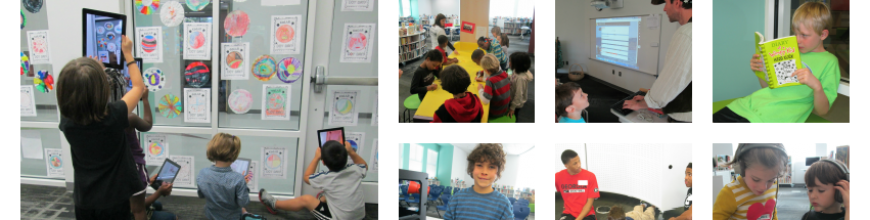
Four of the Kindergarten classes went through this process and it was very exciting to watch.  I saw some of the longest stories by Kindergarten students that I have ever seen.  Chromville was an exciting and motivating tool for them to use and they were full of energy when using it.

IMG_2932 IMG_2921 IMG_2778

We did learn a lot about what to do differently next time.  For example, we will probably opt to use crayons or color pencils next time rather than markers.  We will also avoid black as a color since the lines of the coloring page are black.  These black lines are the instructions for the iPad to read in order to generated the augmented reality scene.  Students also need to be careful not to cross over too many of the lines or color so dark that the black lines can no longer be seen.

IMG_3053 IMG_3052

Along the way, we shared our success (and our failures) with Chromville, and they were eager to learn with us.  We sent them images of pictures that didn’t scan for us and they started taking a look at them to better improve the app.

chromville skype (2)

Today, Mrs. Boyle’s class Skyped with them all the way in Spain.  It was so much fun to Skype with someone in another country, but it was even cooler to see the improvements that they are working hard to create for the next update of Chromville.  We even got to see some upcoming Chromville projects as well as other augmented reality projects that the team is working on.  We loved seeing how even a t-shirt could be a part of an augmented reality project.  During the Skype, we also heard them talk about the improvements that they are making to the app.  This was such a great connection to the writing revision that students had just gone through.  It also validated all of the feedback that students have given about the app over the past few weeks.  They heard from the developers that their feedback was making a difference.

chromville skype (4) chromville skype (5)

We selected one student from each of the Chromville settings to share their stories with the Chromville team.  Each student showed his/her coloring page first and then read the story.

chromville skype (10) chromville skype (15) chromville skype (13) chromville skype (12) chromville skype (17)

Chromville currently has a narrative writing contest going on using the Greenland setting but Kindergarten is not eligible to enter.  This was a way to still honor their work and let the good people at Chromville hear how fantastic a Kindergarten story can be too.

chromville skype (19)

This is definitely a project we will try again.  I’m thankful for Kindergarten teachers who took a risk with me to try something totally new.  As usual, things didn’t work perfectly along the way, but that’s usually where some of the best learning happens.  Even though there were some tears, it was a great lesson that things aren’t always perfect and we have to push through failure and learn from it in order to be innovative.


Using Layar Augmented Reality App for a Digital Wax Museum

IMG_2902Our 4th grade team does a huge wax museum project each year for their study of the Colonial Period.  Kids get assigned a person from colonial times and spend several days researching their person and taking notes.  The notes get condensed into a short script that they memorize.  Then, they dress up as the character, stand in the halls of Barrow, and families and classes walk through and listen to the “wax figures” come to life and talk.

It’s a great project, but I’ve always wondered about bringing in some digital components for many reasons.  One reason is the fact that many families don’t get to come and listen to their child perform something that he or she has spent a lot of time working on.  Another reason is that many students are overwhelmed by the volumes of people walking up and waiting to hear a monologue.  Traditionally, boys have chosen males from the colonial period and girls have chosen females, but I’m sure that there are 4th graders who would love to research the other gender and not necessarily dress up as that character.

IMG_2906

We have a big project in the works to the end the year in 4th grade.  We’ve extended the wax museum to include the entire year’s social studies curriculum and revisit many of the famous people from history in the 4th grade standards.  We’ve also decided to give the students many choices about what they will create as their final product.  The art teacher is also working with us on this project and having kids research images of their chosen person and create new images or collages with the found images.  Whatever students decide to create, it will become digital through a video uploaded to youtube or a link to the project that they create online.

IMG_2905

Before I had even tried it, I suggested that the wax museum be a display of all of the pictures that students created or compiled and that we could use the augmented reality app Layar to link those images to the digital wax museum projects.  The teachers were thrilled and excited, but I was a little nervous trying something I have never done before.  A fantastic opportunity came up for me to try this same project on a much smaller scale with 12 third grade students in Ms. Spurgeon’s ELT class before doing the project with 70 4th graders.

IMG_2903

The third graders chose an African American to research, wrote a script, and filmed themselves or created a video using Tellagami or Chatterpix.  We uploaded those videos to Youtube.  Students searched online for images of their person.  We uploaded those to Layar and then linked the videos to each picture.  I published our “campaign” in Layar Creator.

IMG_2904

Layar is loaded onto all of our iPads.  Mrs. Spurgeon took the images we used in Layar and displayed them in the rotunda, library, and third grade hall.  Students and families can check out an iPad in the library to go and scan the images.  When they scan, the student videos pop up right on top of the picture on the wall and students and families can listen to the video about the person.  Here are a few of the videos that pop up through augmented reality:

I think it’s going to be a messy process to do this with the whole fourth grade with only 5 weeks of school left, but it will be fun and we will learn so much about continuing to upgrade this fantastic project into something that reaches a wider audience.


Bigger, Better, Faster: Our Changing Nation

This week me and three fifth grade teachers are working with about 60 5th graders in the media center as they create final products for the Bigger, Better, Faster unit.  Students have spent several weeks researching their topics using a variety of print materials and online resources, including multiple websites and Galileo.  Students have also created their own united streaming accounts and watched videos about their topics.  Now students are working to create their final products using a variety of digital resources.  Most students have chosen to do Glogsters or Power Points, and a few have opted to make Animotos that they will link in their other products.  We explored Creative Commons as a resource for finding images to include in products, and students got to work creating.

This was my first venture into Glogster, and while it hasn’t been a perfect experience, I’ve been amazed at what the students have figured out how to do by just going in and exploring.  I showed them Glogster as one option for their final products, but I did not go into great detail about how to use it.  Students quickly figured out the features of the tool and began sharing it with one another.  The most frustrating thing for them so far has been that the free basic educator account does not allow them to upload files.  I’ve temporarily fixed that by subscribing to a one-month trial of the premium account so that we can see how well we actually like using Glogster.  

All in all, using tools like Glogster to create a final product has been a motivating experience for most students.  Instead of creating tri-boards and paper brochures and posters, they are creating digital content that can be easily shared with a winder audience.  They have worked collaboratively in groups of 3, and we’ve seen that each student is bringing his or her strengths to the groups.  I’ve stood in awe as I’ve watched one student pull up a double entry journal from the research phase of the project, which contains both quotes directly from the source and information in student words, while the other students had the final product pulled up to input the information.  I’ve watched students split themselves between 3 computers to do individual work, email their work to one another, and then find ways of putting it all together.  It has just reaffirmed the power of doing initial instruction and then giving students a space to create, at which point the teachers and media specialist become facilitators and supporters of learners as students need guidance or run into barriers.

I’ll spend the next 3 days working with these students to finish their products, but in the meantime, you can enjoy some of the early versions of their work and see how they progress.

Glogster 1

Glogster 2

Glogster 3

School Libraries Cultivate Digital Literacy

School Libraries Cultivate Digital Literacy.  Our media center was featured in this article in Converge Magazine.  The article discusses how libraries support digital literacy, the challenges faced by libraries in doing this, and how librarians are overcoming these challenges.